


Ads. Trackers. Malware. Adult content showing up when you least expect it. Every device on your network is a doorway for chaos. If you have kids, it is even worse. AdGuard Home exists so you can finally take control. Yes, it works.
What is Adguard Home?
AdGuard Home is a network-wide ad and tracker blocker that runs on your own server. It filters all devices on your network, from phones and tablets to smart TVs, giving you control over what gets through. You can manage it through a web dashboard, add custom rules, and see everything happening on your network in real time.
 AdguardTeam
Parental Peace of Mind
This is the part that matters most. Kids are online. They watch YouTube, play mobile games, and sometimes end up on sketchy sites before you can stop them. AdGuard Home gives you a network-wide filter that stops adult content and enforces safe search on all devices. You do not need to hop from device to device installing separate parental apps or browser extensions. One server, one dashboard, one set of rules. That is peace of mind in three clicks.
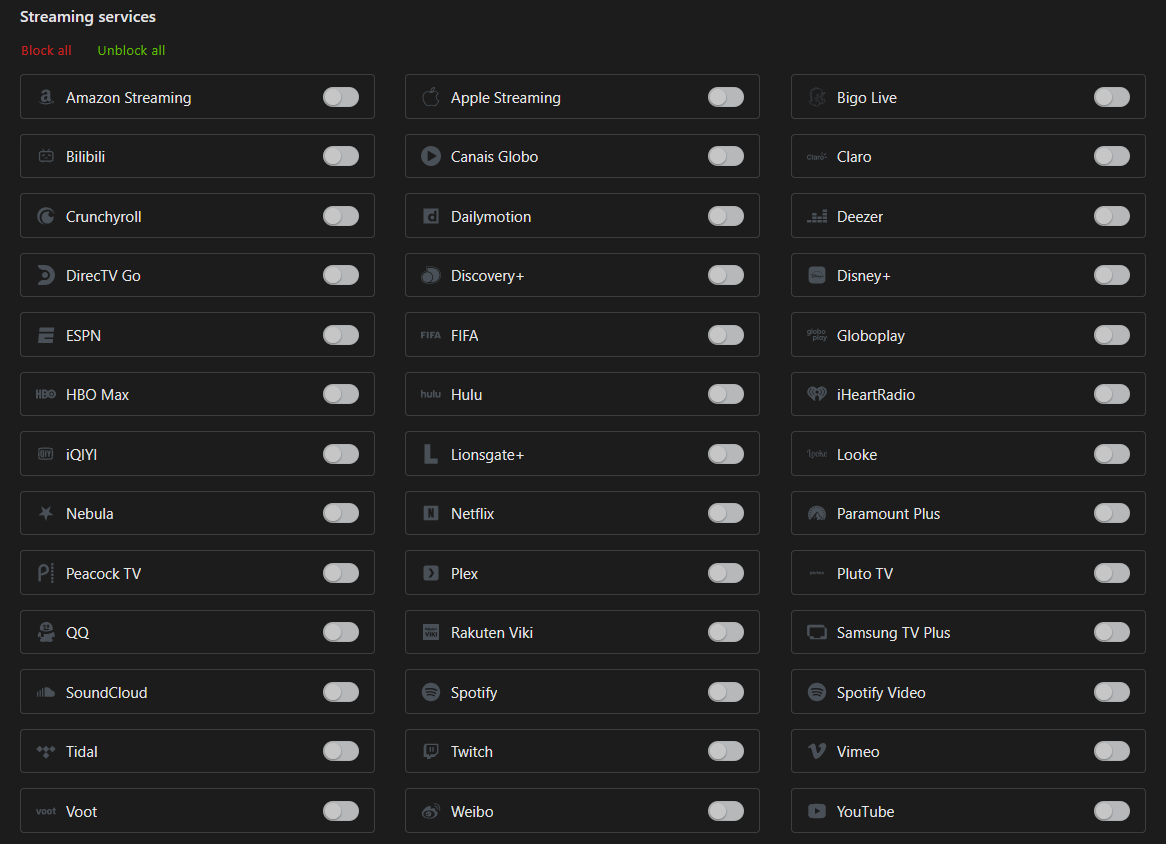
It does more than block adult content. It shuts down trackers, malware domains, and sketchy ad servers before they ever load. You do not have to babysit your kids around the clock or constantly check what they are clicking. And when something inevitably slips through, you are not stuck waiting on someone else to fix it. You can add your own custom filter rules, because as good as AdGuard is, no automatic list will ever catch every site you want blocked.
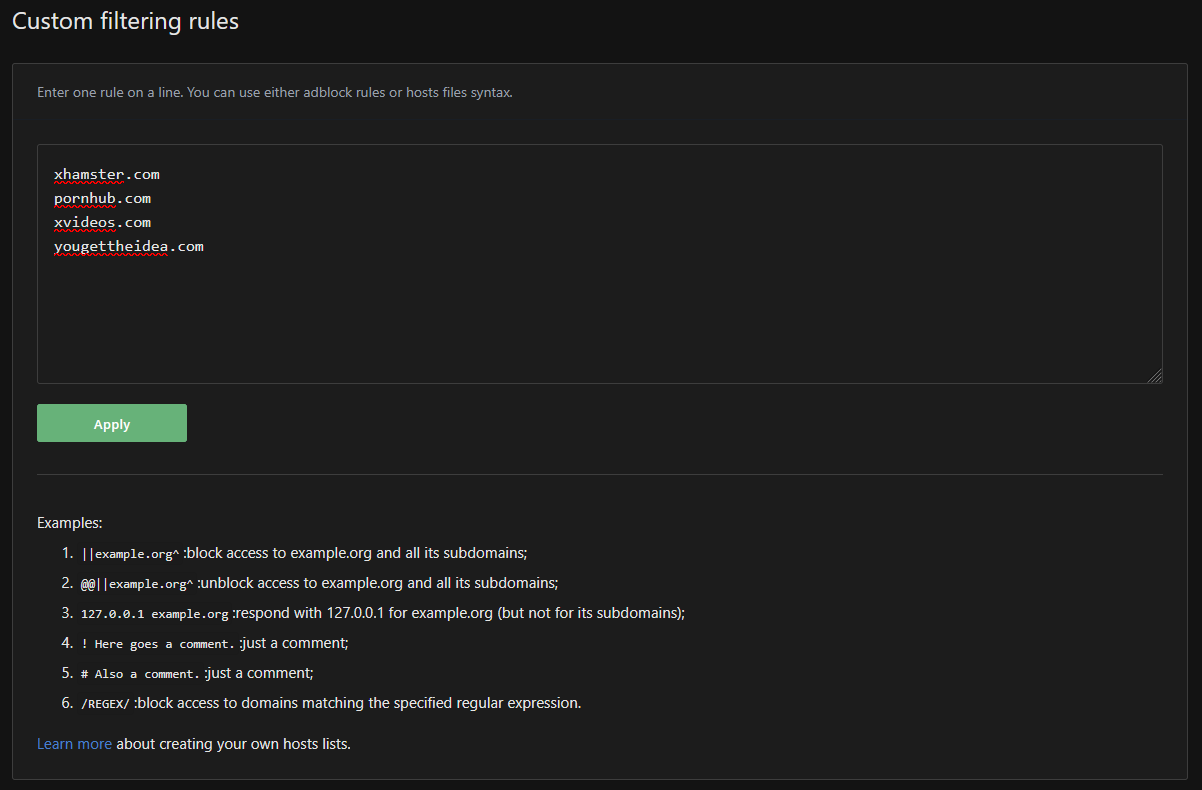
Just so you know, most adult sites are already covered by the default blocklists. The problem is the internet never stops growing, and new sites pop up every day. That is why having the ability to add your own rules matters.
Works for Browsers and Apps
Ad-blocking browser extensions are fine but what about apps, games, and streaming services? Those are not affected by extensions. AdGuard Home sits at the network level, so it works for everything that connects to the internet. Your devices do not even know it is there.
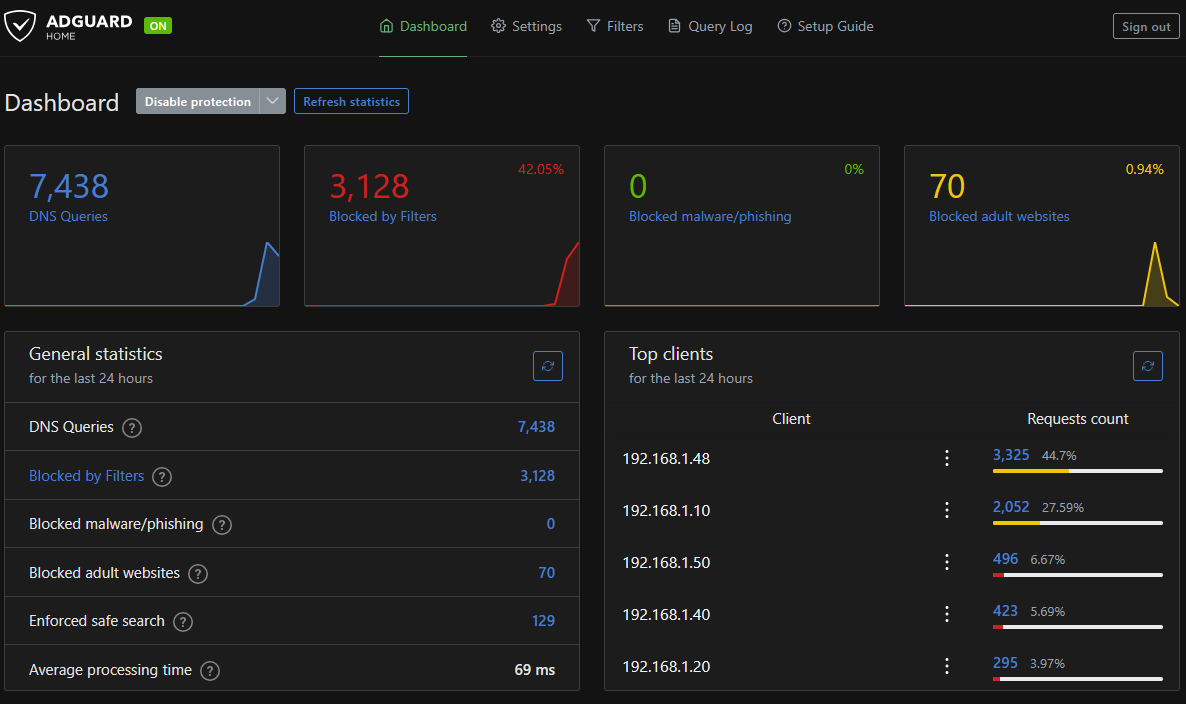
Even my wife noticed the difference immediately. She loves playing games on her phone, and now she does not have to sit through endless ads or pop-ups between levels. It sounds small, but for her it makes gaming relaxing again.
Whether it is a phone, a tablet, a smart TV, or a laptop, if it is on your network, it is protected.
Ease of Use
Do not let the words self-hosting scare you. AdGuard Home is surprisingly easy to set up. Install it on a small server, a spare PC, or even a Raspberry Pi. It comes with a web dashboard that lets you tweak settings, manage filters, and check stats without touching a single line of code.
You are not installing a pile of apps on every device in the house. You are installing one app to control them all.
Installing via Docker Compose (Self-Hosted)
If you already use Docker, installing AdGuard Home is straightforward. Create a docker-compose.yml file with something like this:
services:
  adguardhome:
    container_name: adguardhome
    image: adguard/adguardhome:latest
    restart: unless-stopped
    ports:
      - "53:53/tcp"
      - "53:53/udp"
      - "80:80/tcp"
      - "443:443/tcp"
    volumes:
      - /docker/adguard/workdir:/opt/adguardhome/work
      - /docker/adguard/confdir:/opt/adguardhome/conf
The dashboard will be available at your server IP on port 80. From there, you can configure filters, parental rules, and more.
Learn more about self-hosting and how to get started with Docker here.
 Jeremy
Public AdGuard DNS
Not ready to host your own server? That is fine. AdGuard also runs public DNS servers that give you many of the same benefits without installing anything.
- 94.140.14.14 – Default. Blocks ads, trackers, and malware. Perfect for personal use.
- 94.140.14.15 – Family mode. Everything default blocks plus adult content and safe search enforcement. Perfect for households with kids.
Point your router or individual devices at these IPs and your traffic is filtered at the DNS level.
Why Self-Hosting Wins
Here is the truth. Public DNS is convenient but self-hosting gives you power. You can add custom blocklists, whitelist or blacklist domains, check who is doing what on your network, and create rules for specific devices. Want ads blocked on phones but not your work PC? Done. Want to log stats about every device hitting the internet? Also done. Public DNS cannot compete with that level of control.
Final Notes and Thoughts
Since I set up AdGuard Home I have really enjoyed being able to see what is happening on our network. The dashboard shows me which devices are connecting, what sites are being blocked, and gives me a clear view of everything in real time.
Self-host it on your server for full control or point your devices at 94.140.14.14 or 94.140.14.15 for instant network-wide filtering. Either way, I highly recommend using one of these options!


Discussion