


Back in 2018, I stumbled upon this really cool free podcasting app called Anchor.FM. It enabled the user to create a podcast right on their phone through a simple and clean interface. They were able to construct each episode using a series of 'blocks' that were either little chimes and interludes or recorded segments. Then, one day, Spotify bought the company and deleted the app entirely. I've been searching for a replacement for quite some time and I've always been left empty handed. There are a lot of great apps and websites out there to help record podcasts but many are very expensive and subscription based and there are a minuscule number of free and open source alternatives. I greatly enjoy the freedom of being able to self-host and customize the tools I use so I set out to build my vision and the gap in the market - a free and open source podcast creator.
Introducing HarborFM
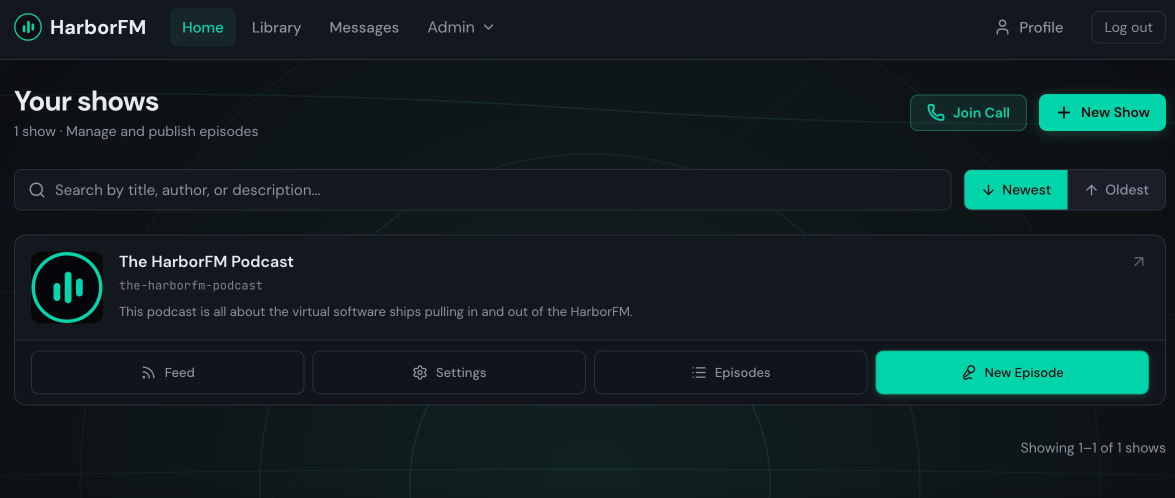
HarborFM is a self-hosted podcast creation tool that enables you to create episodes by assembling reusable audio segments such as recordings, uploads, intros, and outros, then trim and arrange them into a final file. Each show generates its own RSS feed, giving you full control over how and where your podcast is delivered. The app was built with mobile and PWA in mind and all features work on both mobile and desktop.
GitHub: https://github.com/LoganRickert/HarborFM
Demo: https://app.harborfm.com
Website: https://harborfm.com
Discord: https://discord.gg/hSmstBzAJV
Key Features
- Podcasts - Create shows, manage episode metadata
- Episode Editor - Segment based audio assembly
- Library - Reusable intros, outros, bumpers
- Remote Calls - WebRTC guest recording sessions
- Chapters - Podcast 2.0 chapter markers
- Transcripts - Whisper ASR and AI summaries
- RSS & Export - Per show feeds and deployment
- Collaboration - Live multi user episode editing
- Private Feeds - Tokenized subscriber only RSS
- Analytics - Download stats and listener locations
Podcast Dashboard
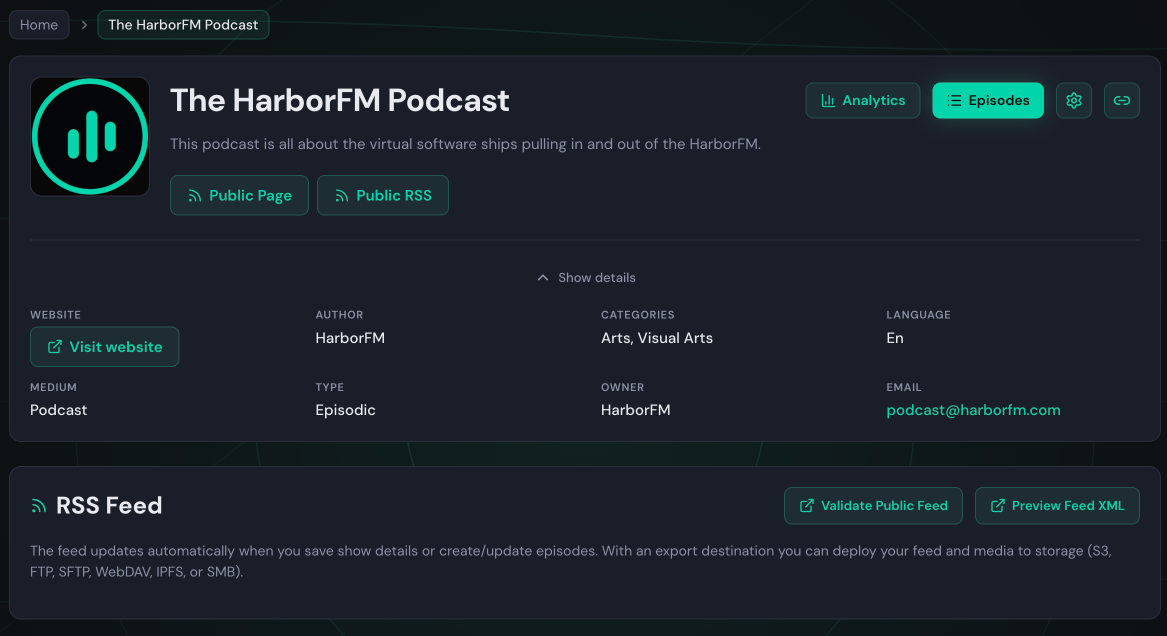
Each podcast you create gives you access to access to a dashboard where you can easily view and update the details. From this page, you can view a dedicated page for the analytics and a the list of episodes, and you can manage the show cast, collaborators, podcast delivery, and subscriber tokens.
Show Cast
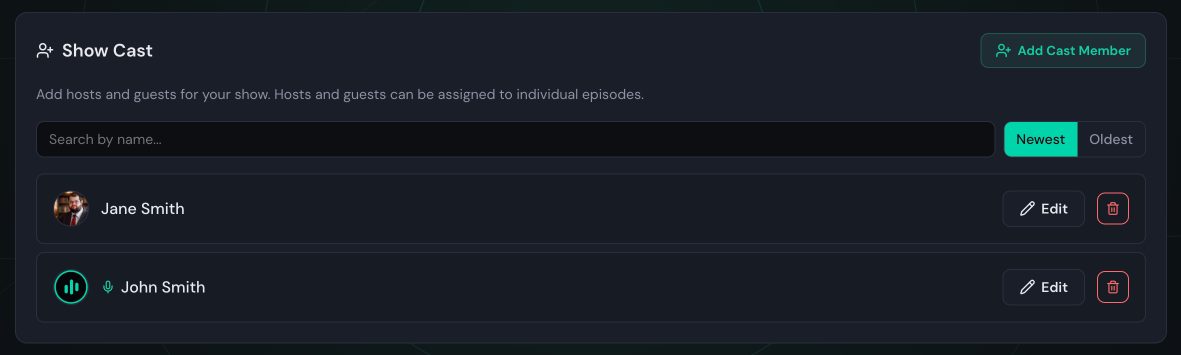
On the podcast details page, you can add and edit a list of all of the cast that have been apart of your show. You can use this list when editing an episode to select who will be making an appearance to display on the public page for each episode. The public page for the podcast will list all cast members.
Collaboration
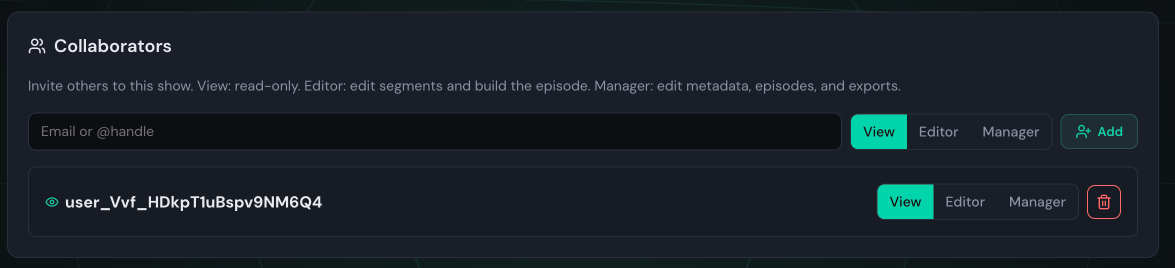
You can easily manage who can see and collaborate on each podcast. The episode edit page dispatches your edits to anyone else currently viewing it so you can easily work on building a episode as a team.
Podcast Delivery

You are not locked in to hosting the podcast files on the app. If you would rather host the files somewhere else, you can easily add each location and when you are ready to update the files, simply click "Deploy" and it will upload all of the files to each host you have listed. The list of destinations include S3/R2, FTP, SFTP, WebDAV, IPFS, and SMB.
Subscription Tokens
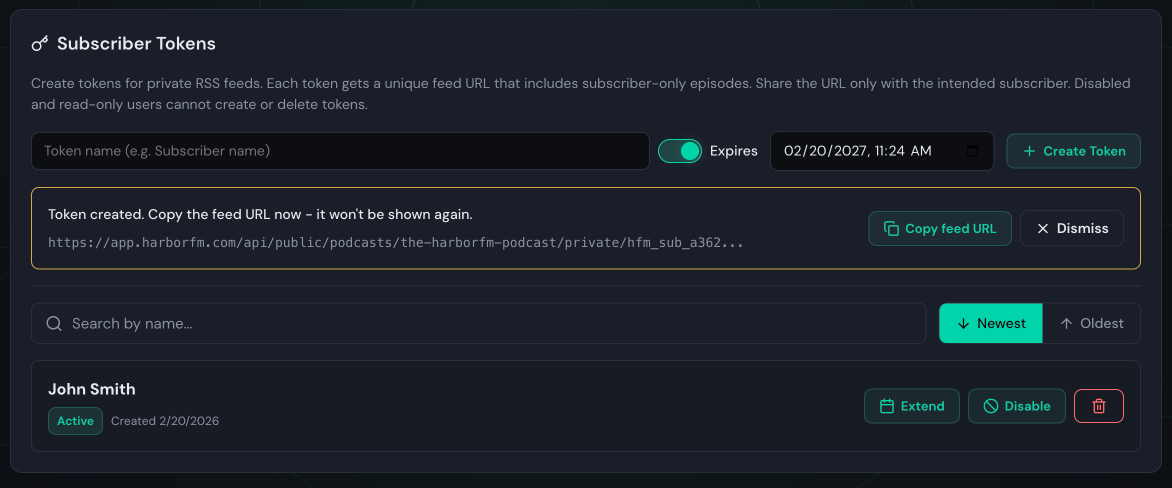
The app supports creating and managing subscriptions for a podcast. There is no billing system so this would need to be managed by another platform but there is a REST API for creating and managing the subscription tokens. You can configure the entire podcast to be subscription only or only specific episodes. The public podcast page and episode page will show subscriber-only episodes but you are not able to listen unless you unlock it using the special key. The key is for a unique link to the RSS feed of the podcast which includes the subscriber only episodes.
Creating An Episode
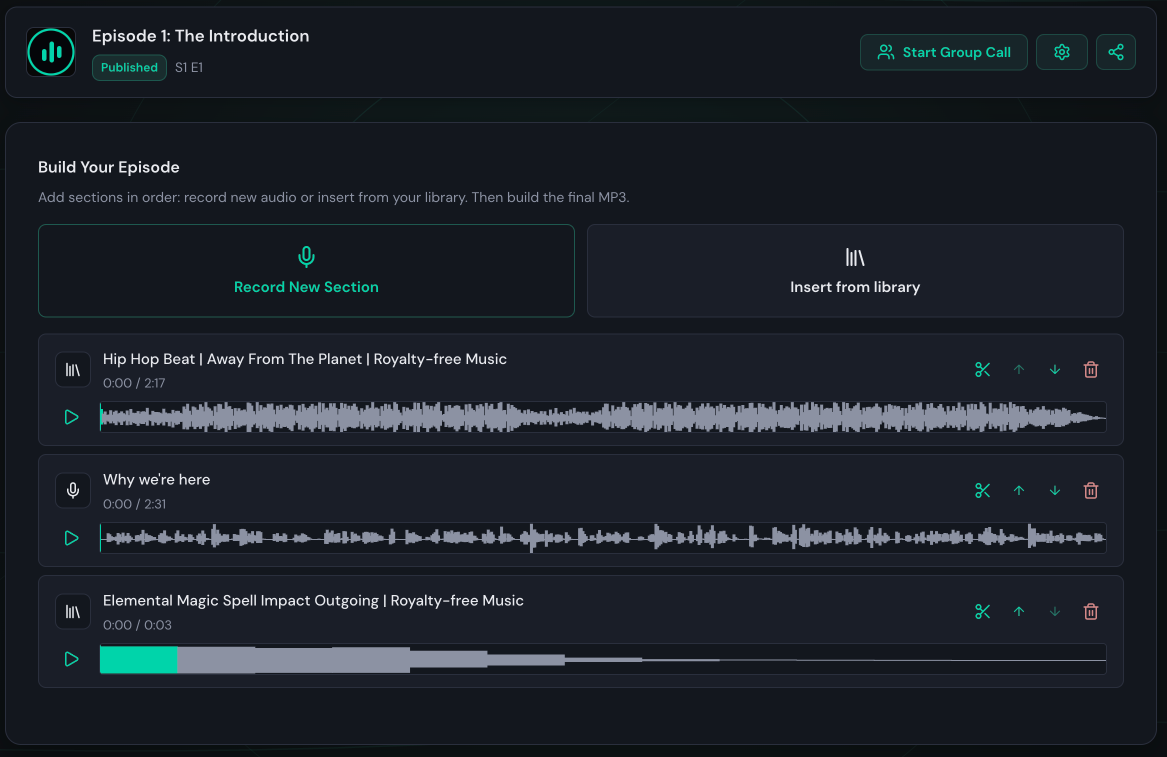
This is the meat and potatoes of the app and the main reason it was created. You have three main ways to add audio to an episode - through record new segment, insert from library, or group calling.
Record New Segment
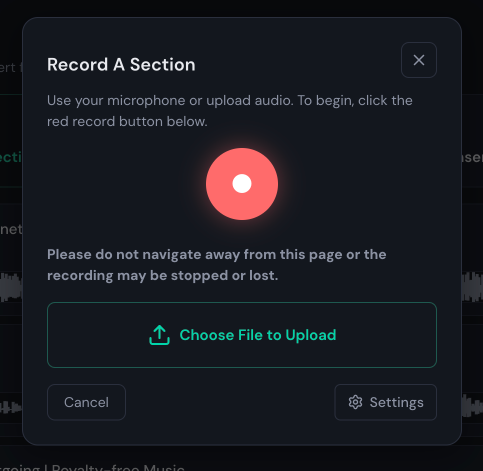
You can record a new segment locally in your browser or by uploading a segment you recorded elsewhere.
Insert from Library
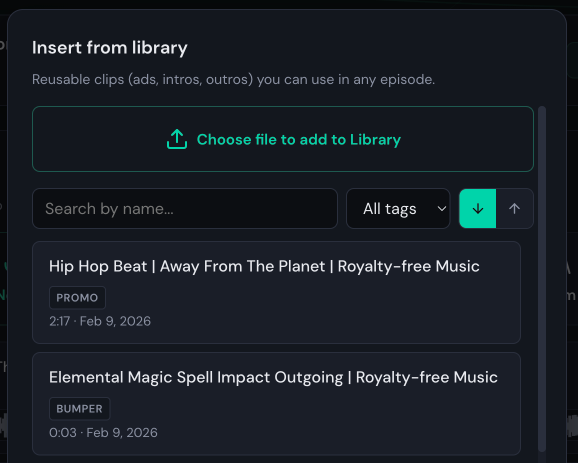
You can insert a per-existing audio file from your library. This is a list of audio files that are shared across podcasts.
Group Calls
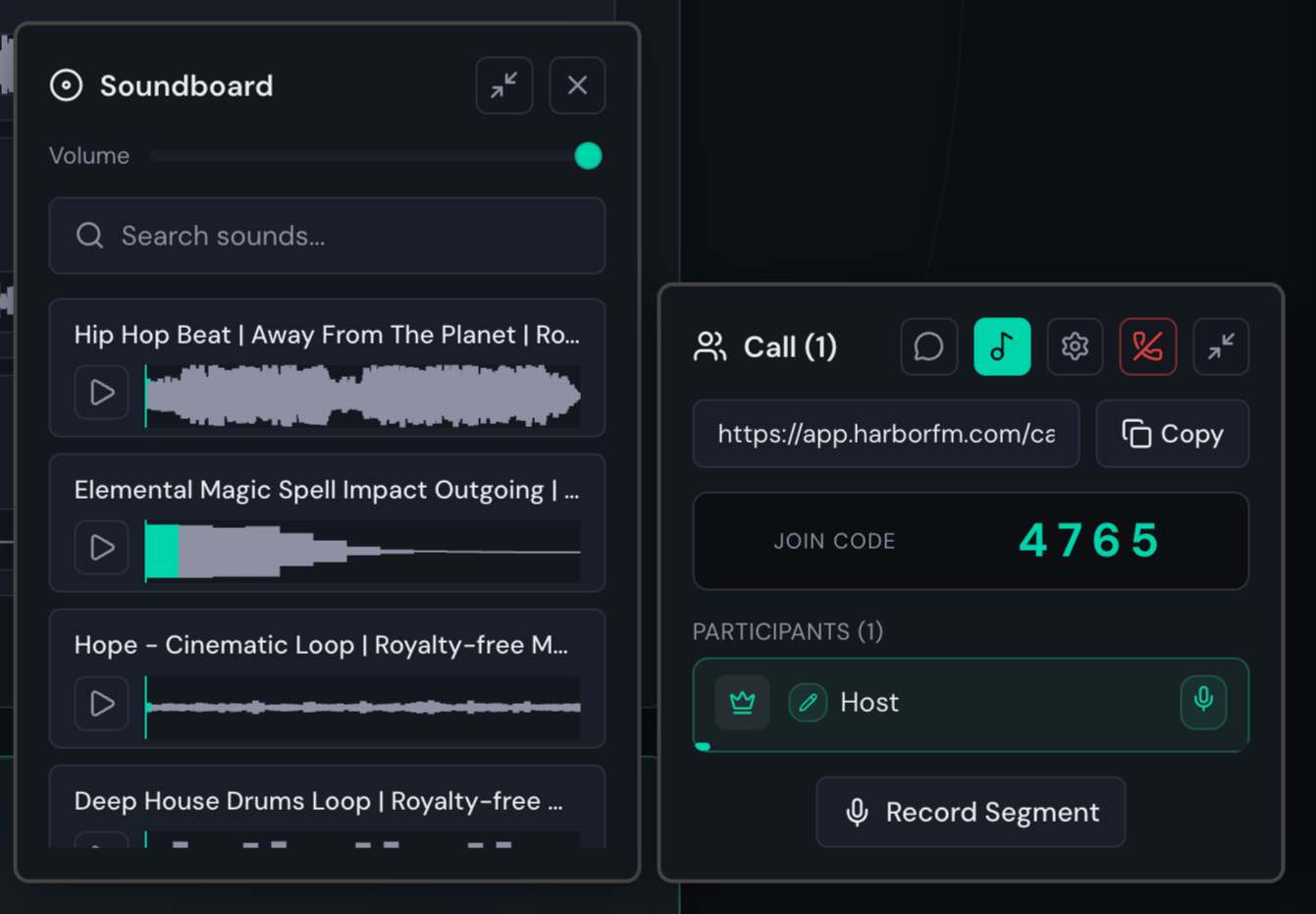
The application supports creating group calls over WebRTC. You can click Record Segment at any time and the server will begin recording the call. Once you're finished, you can click end segment and the new segment will be added to the episode segment list. During the call you can play any of your library audio files like a soundboard and it will be recorded onto the final segment.
Segment Editor
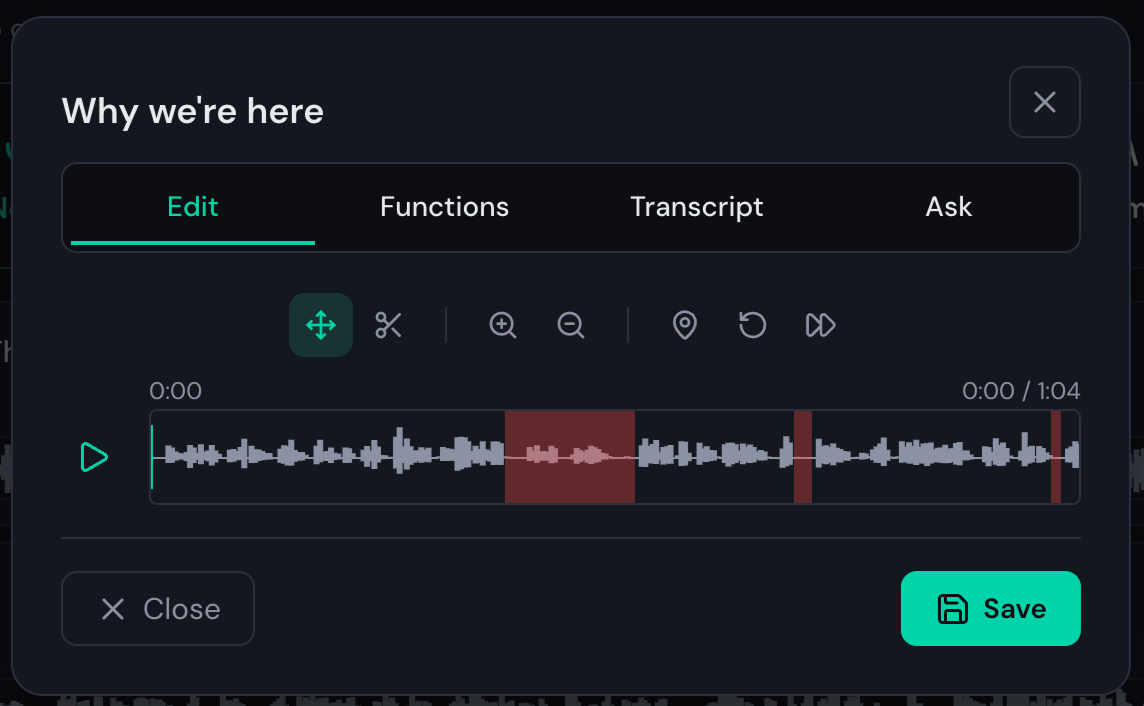
The segment editor allows you to trim out sections and place markers for chapters. By default, the timeline is zoomed in to one minute in length but can be zoomed in and out. Often times while recording, there can be a lot of dead air, so on the functions tab there is a "add silence trims". This will automatically find any silence silence that lasts longer than 1 section and place a trim just before and after the silence begins. All of the trims are non-destructive and can be edited at any time. When you play back the audio in the segment editor or the episode editor it will automatically skip the trimmed sections.
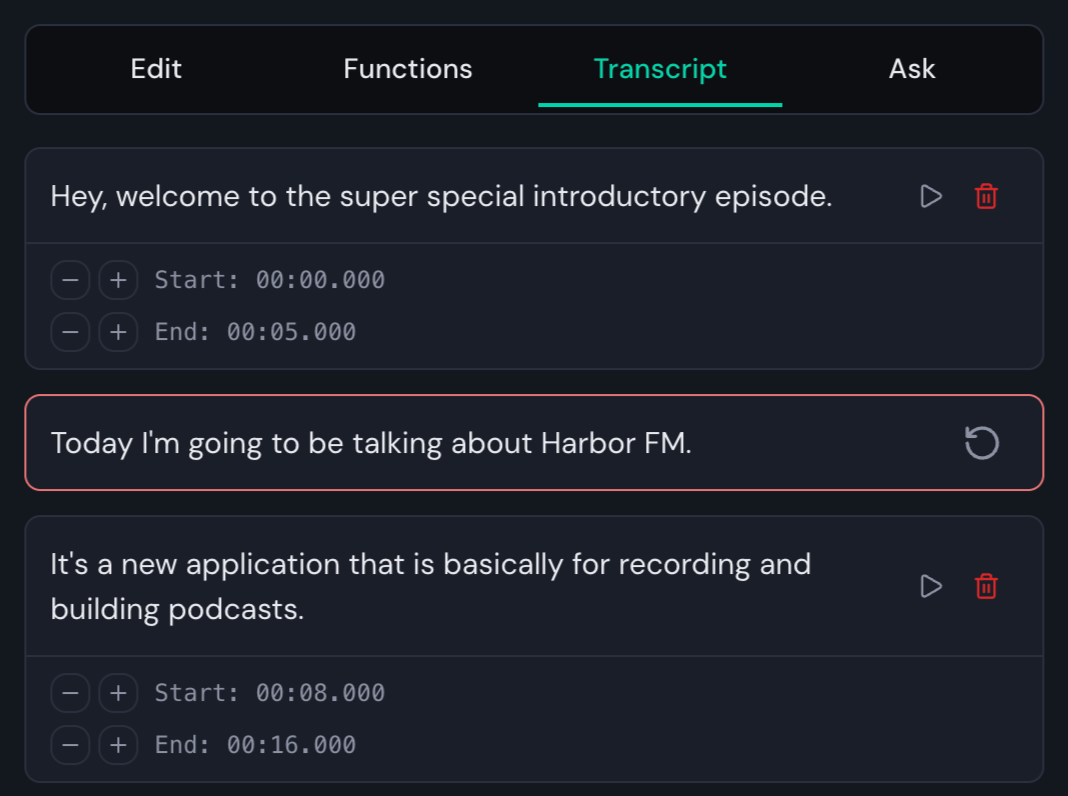
The segment editor also features a transcript and ask tab. The transcript tab will show the SRT for a transcript and you can easily remove the desired sections. Clicking the delete button will place a trim on the timeline between the start and the end time. You can also click undo if you want to bring that section back. The ask tab allows you to ask an LLM for feedback about your transcript. It passes all of the enabled transcript sections in plus your prompt and will return feedback such as what you could do better or follow up questions to answer in the next segment.
Generating the Audio for an Episode
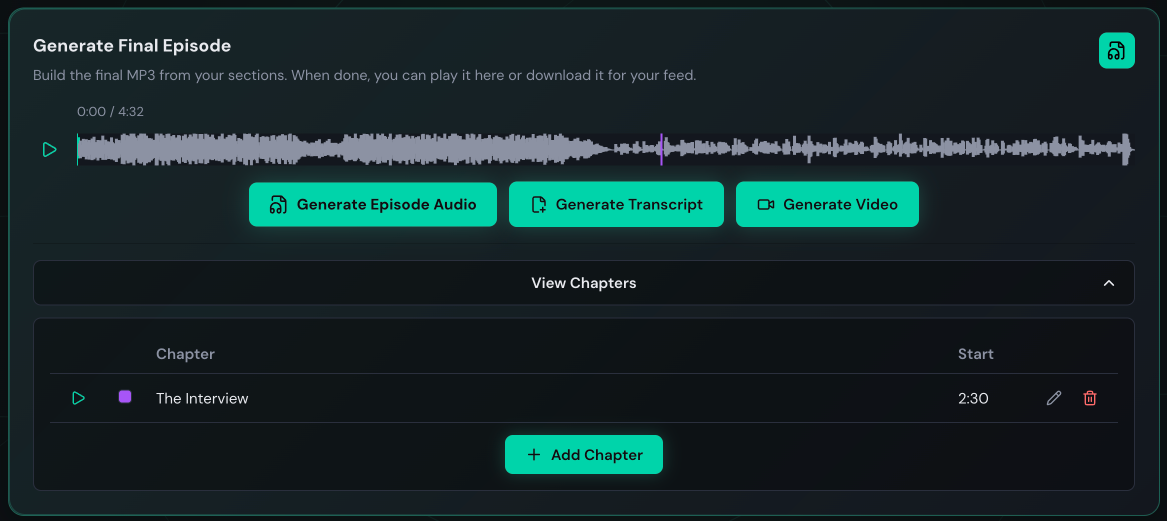
Once you've finished recording and editing your episode, you can generate the final audio. If you selected any of your markers in the segment editor to be a chapter, the markers will appear as a chapter list. You can also generate, view, and manually edit a final transcript as well. In the header, you also have the ability to download the final audio file to your computer.
Generating the Video for an Episode
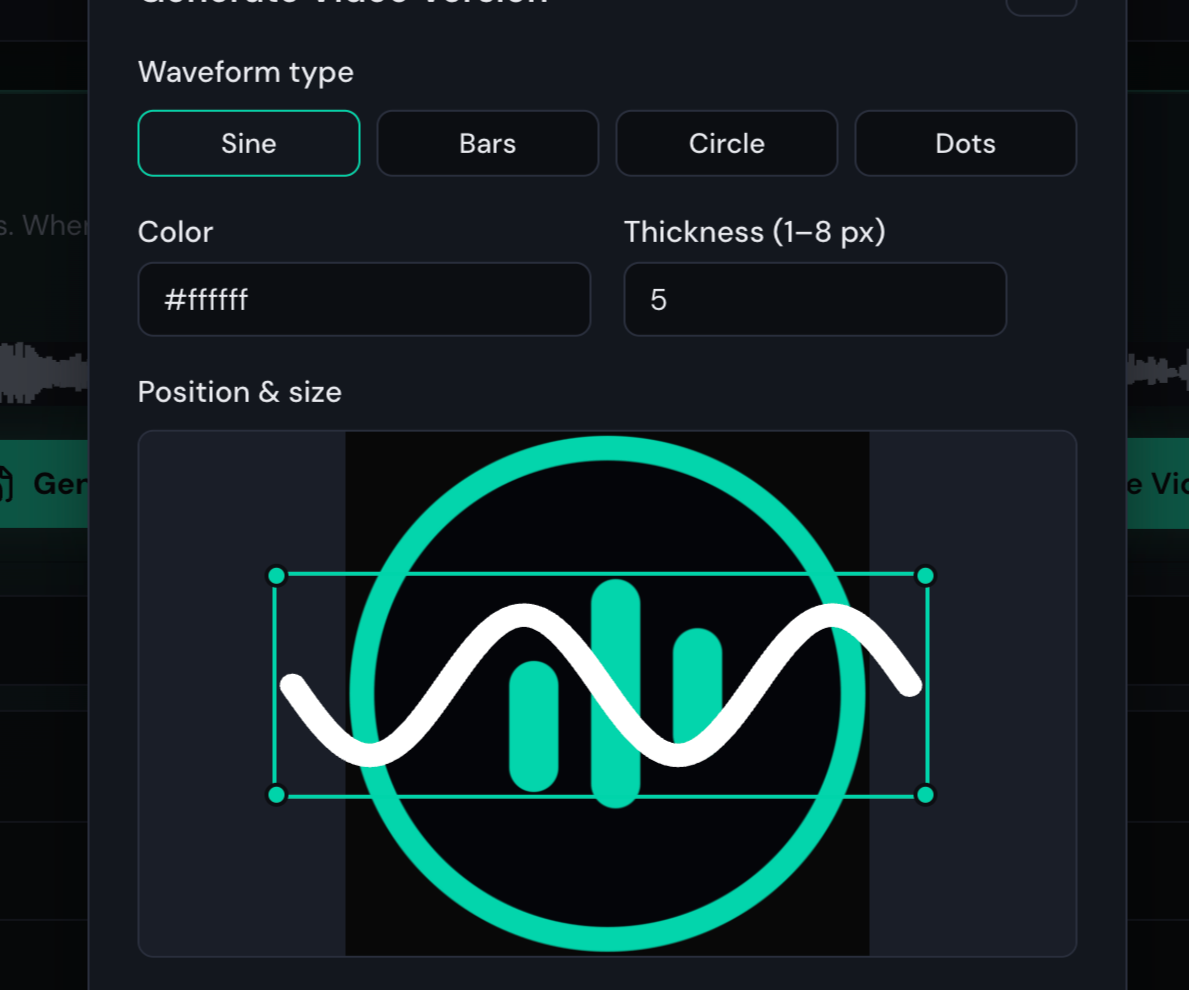
Once you have generated the final audio, you have the ability to generate a video as well. You can select between landscape (16x9) or portrait (9x16), the resolution, and the background image, the waveform type, color, thickness, size and position. This may take some time to render depending on the machine but the final result is a cool sin wave that bounces around as the person talks.
Public Pages
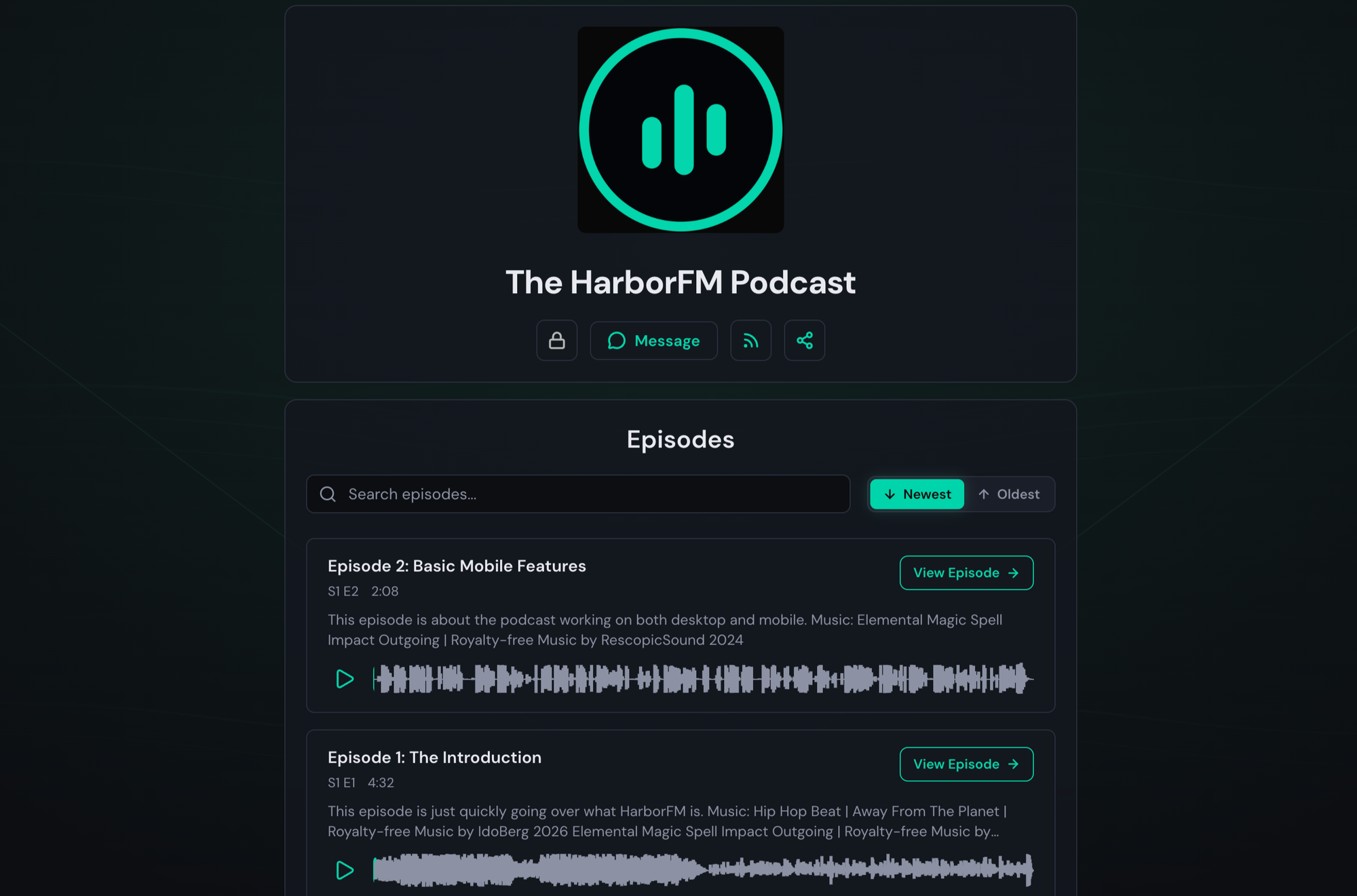
The application also features a public page where you can see all of the podcasts hosted on the application along with a public page for each podcast and each episode. There the option to enable message for each podcast so anyone can send in a message and it will be stored for the owner of the podcast to read from their dashboard.
Embed Episodes

You have the ability to embed each episode of your podcast in another site using iframe. The embed will do it's best job at trying to make the contents visible depending on the width and height you set.
Administration
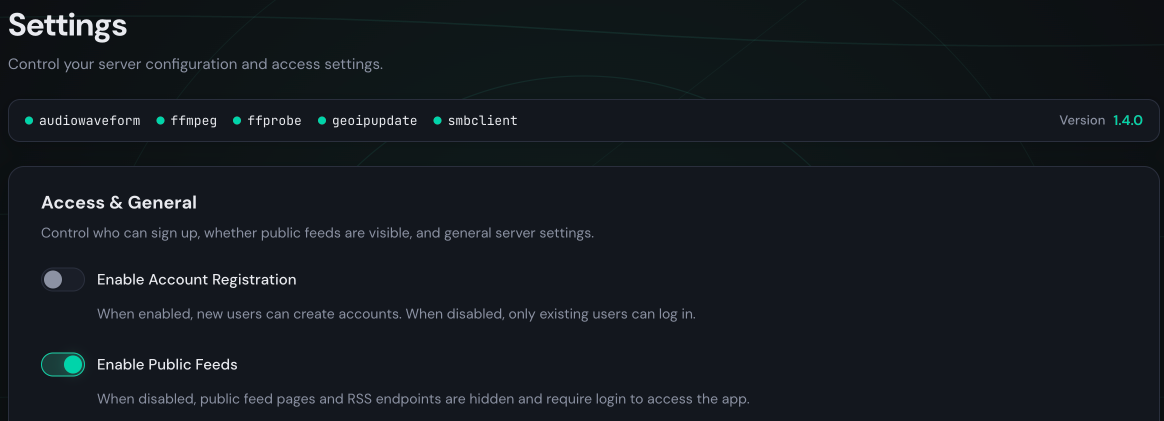
There are a lot of administration features and settings built into the application to give server owners the maximum amount of control over their setup.
Just a few of the things you can configure:
- Default number of podcasts and episodes and storage space for each user
- Generate final audio encoding settings
- Transcription service (local Whisper or OpenAI)
- LLM Service (Ollama or OpenAI)
- CAPTCHA
- WebRTC
- Two-Factor Authentication (Email and TOTP)
- Single Sign on (OIDC and SAML)
- DNS Configuration (you can allow custom domains to have CNAMEs to their public podcast page with automatic SSL if you're using Caddy)
- Terms of Service and Privacy Policy
Deployment
There are quite a few ways to get started but if you just want to test out the barebones version (no WebRTC or Nginx), you can do so with docker run the following command.
Local Docker
docker run --name harborfm -p 3001:3001 \
  -e COOKIE_SECURE="false" \
  -e ALLOW_VIDEO_GENERATION="true" \
  ghcr.io/loganrickert/harborfm:latest
Command to start docker
Docker Compose
If you would like to run the full service locally and have docker and docker compose and are using BASH, you can use this install script which will automatically download all of the yaml files and start the docker compose. You can configure it to use either Nginx or Caddy for the proxy.
curl -fsSL https://raw.githubusercontent.com/LoganRickert/harborfm/main/install.sh | bashDownloads the Docker Compose and other configuration files
Terraform
The best way to run and deploy the application is through Terraform. There are two main Terraform scripts, one to deploy to AWS and one to deploy to Vultr. The data for the application is stored on a separate EBS so you can easily redeploy the entire application for every update without having to deal with configuration problems or if you only want to have the application online during certain times or days or when you are ready to make a new episode. The terraform script supports deploying to bare metal (no docker) or using docker and you can pick between Nginx or Caddy and both will be configured correctly out of the box. I would recommend having at least 2 GB of RAM and 2 vCPUs if you are using PM2 due to the initial npm build process.
Closing Thoughts
I've had a really great time building this application. I think it will be a very useful product to a lot of people and I hope that people will start hopping onto the GitHub and giving it a shot. I welcome any and all feedback or ideas - if you have any or you're experiencing issues or bugs, please feel free to open an issue on GitHub. There are still a lot of features I would love to see added and I'm excited to see where this will go.
This product is and will always be free and open source.


Discussion