


I've found ArchiveBox to be overwhelming, despite its capabilities. SOSSE seems like a more manageable alternative for archiving websites and searching through my archives. I'll take a closer look at the app and its features to see if it's a good fit for your needs.
What is SOSSE?
SOSSE, a self-hosted Selenium-based open-source search engine, offers a unique approach to web archiving and searching.

SOSSE Key Features
- Web Page Search: Conduct advanced searches of web pages, including dynamically rendered content.
- Recurring Crawling: Schedule crawls at fixed intervals or adjust the rate based on content changes.
- Web Page Archiving: Store HTML content, update links for local use, download required assets, and handle dynamic content.
- File Downloads: Batch download binary files from web pages in a single operation.
- Atom Feeds: Generate content feeds for websites that don't have them or receive notifications when new content is published containing a specified keyword.
- Authentication: Automatically authenticate to access private pages and retrieve content.
- Permissions: Configure crawlers, view statistics (for admins), and perform searches anonymously (for authenticated users).
- Search Features: Includes features such as private search history, external search engine shortcuts, etc.
SOSSE is built using Python and released under the GNU AGPLv3 license, making it an open-source solution. When it comes to crawling websites, SOSSE leverages a combination of technologies, including browser-based crawling with Mozilla Firefox or Google Chromium, along with Selenium for handling pages that rely on JavaScript. For even faster crawling, Requests can be employed as well. On the technical side, SOSSE is designed to be lightweight and uses PostgreSQL as its database storage solution.
Prerequisites for SOSSE
To be honest, SOSSE doesn't quite match its claims of being a "lightweight" solution, but I've found that it still gets the job done effectively. However, this is definitely subjective and can vary depending on your specific hosting environment and setup. In reality, you'll likely need a more robust virtual machine or container to run SOSSE smoothly.
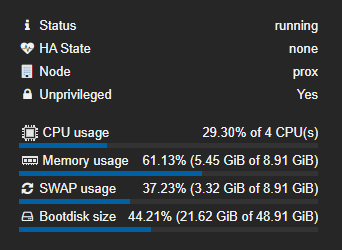
I've found that RAM usage can spike up to around 5.5GB during crawling sessions, and CPU load can also get quite high as well. If you plan on doing a lot of archiving, make sure to allocate enough storage space upfront to avoid any potential problems.
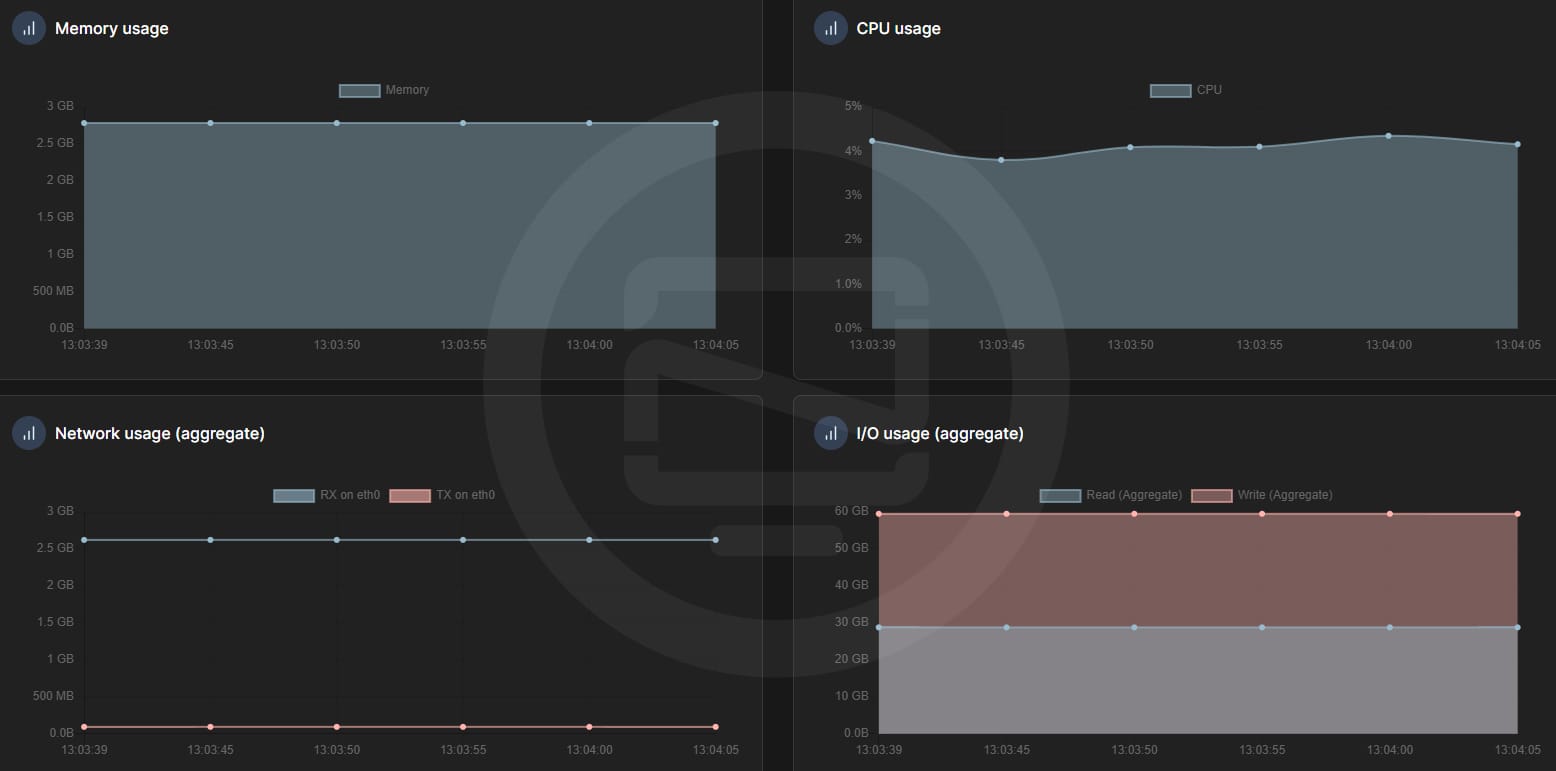
It's worth noting that even when SOSSE isn't doing any busy work, it still uses around 2.8GB of RAM, which is quite a chunk for an idle process. On the plus side, the CPU usage tends to be pretty low when the app isn't actively crawling or archiving.
Install SOSSE using Docker Compose
If you don't have Docker installed and need help getting started, I recommend checking out our self-hosting guides for beginners. These guides cover the basics of setting up Docker on your server. They're designed to help you get up and running smoothly, even if you're new to self-hosting.
Use the following Docker Compose to install SOSSE:
services:
    sosse:
        volumes:
            - /docker/sosse/data:/etc/sosse/
            - /docker/sosse/logs:/var/log/sosse/
            - /docker/sosse/archives:/var/lib/sosse/html
        ports:
            - 8005:80
        image: biolds/sosse:latest
Be sure to change the mounts and port to your liking before deploying the app.
SOSSE Web UI Tour
When you first launch SOSSE, you will be presented with a login like this.
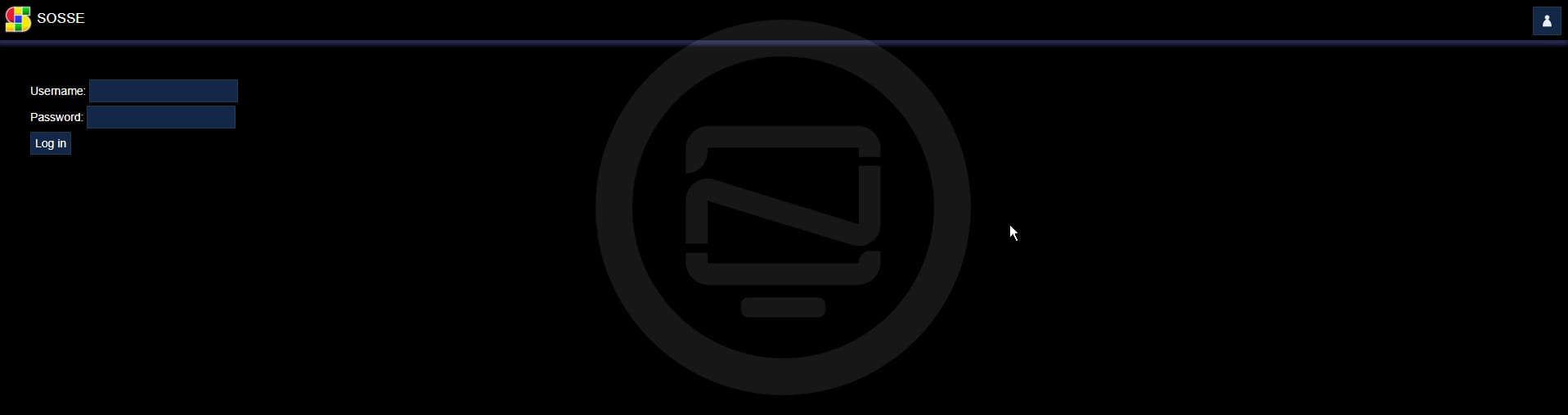
Login using the credentials admin:admin then change the password to your liking.
When you log into SOSSE, you'll see a pretty simple looking page with a search box, but since there's no data to search yet, we need to add some configuration to get things going. To start, you can click on "Configuration" in the upper right and then click on "Administration". I recommend starting with a new policy from scratch, rather than modifying an existing one. If you just want to grab all pages for a specific domain, simply create a new policy with that domain's URL as the regular expression. It's a good idea to create a new policy for a website you want to make a FULL archive of.

If you're having trouble with HTML archiving, I've found that using the Chromium browser works best for this task. You can find the browser settings in the Browser tab within SOSSE. Once you've set up your preferred browser, be sure to save the crawl policy and then use it to start crawling the website you want to archive.
Once you've set up your crawl policy, head back to the Configuration section and click on "Crawl a new URL". Then, enter the URL of the website you want to start crawling. Finally, click the "Check and queue" button to initiate the crawling process.

After setting up your crawl policy and starting the crawling process, it's a good idea to let it finish before you do anything else. Then, head back to the main page of SOSSE. You should now see a thumbnail image on the page, accompanied by a link to the content that's been successfully crawled for each domain under that URL.

Now we're cookin' with peanut oil! With your crawled content at your disposal, you can turn SOSSE into your own personal search engine for the websites you've archived. For example, if you want to find articles or pages containing a specific term like "Ghost", simply type it in and SOSSE will display all relevant results from those archived sites. You can then browse them all locally within the SOSSE app.
Final Notes and Thoughts
This is just the beginning of what you can do with SOSSE, you can do much more and I encourage you to install it and have a look for yourself. Be sure to read the well written SOSSE documentation if you run into any issues.
If you really wanted to, you could index everything on your network such as wiki, notes, images and more and use SOSSE as a network search engine. Pretty rad huh?
Be sure to swing by the SOSSE Github page and give it a star!


Discussion