


Most of us copy files by hand or run the same rsync command every few days, hoping we did not miss anything. With n8n and rsync, you can make that entire process automatic.
Before setting up the workflow, I created a shared folder on my Synology NAS and connected it to my server using Samba. The share was mounted under /mnt/synomediabackup, which allowed the server to treat it like a local directory. Once that connection was working, n8n could run rsync directly between the two paths without any extra network steps.
This small piece is important. Without Samba, rsync would need to connect over SSH or another remote method. By mounting the NAS share first, everything stays local and fast, and permissions are handled cleanly by the system.
With that in place, n8n takes care of the rest. It runs the sync, cleans up old files, checks free space, and sends a message when it is done. Three nodes, one routine solved forever.
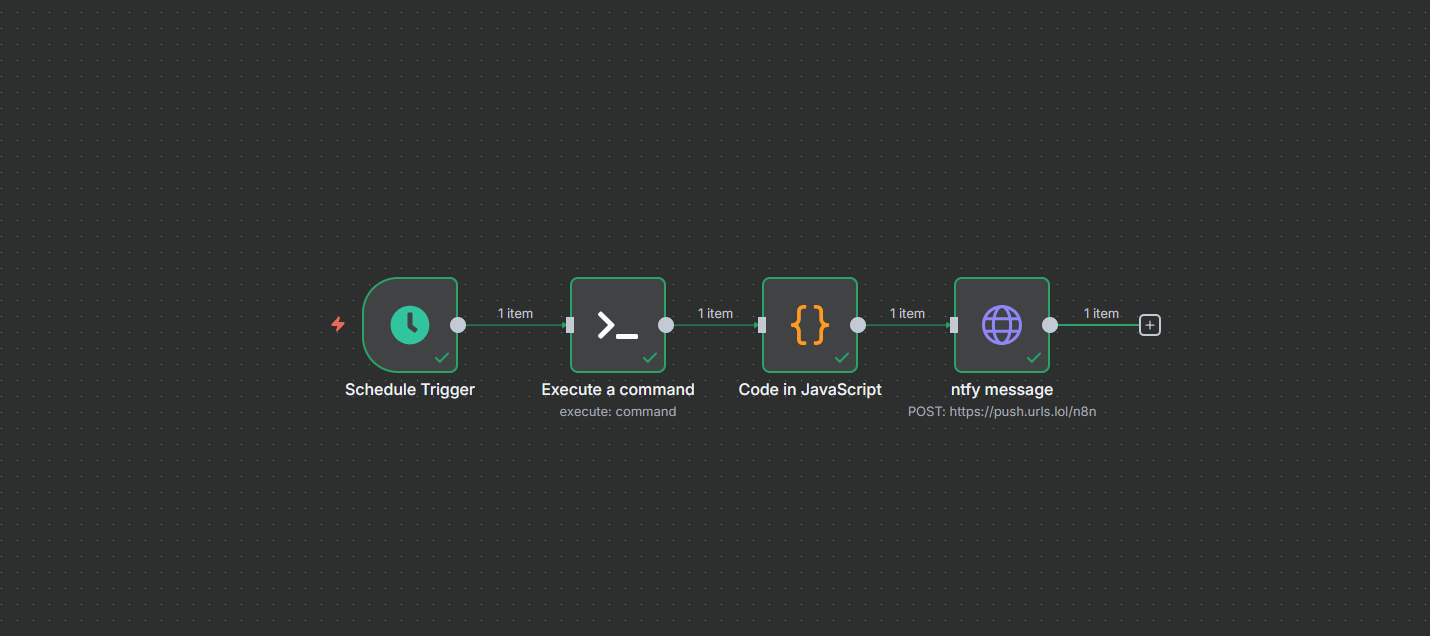
Workflow Summary
| Node | Type | Purpose |
|---|---|---|
| 1 | Execute Command | Runs the rsync job and reports storage after sync |
| 2 | Code | Parses the rsync output and builds a short summary |
| 3 | HTTP Request | Sends a notification through ntfy |
- Execute Command Node
The first node runs rsync from your main media folder to the NAS and checks how much storage is left when it finishes.
rsync -a --delete --stats \
--exclude=$RECYCLE.BIN \
--exclude=.sync \
--exclude=aquota.group \
--exclude=aquota.user \
/mnt/media/TV/TV/ /mnt/synomediabackup/TV/ ; \
echo " "; \
echo "---- Storage After Sync ----" ; \
df -h /mnt/synomediabackup
This keeps your NAS perfectly mirrored. The delete flag removes files that no longer exist on your server so you always have an exact copy. The exclude lines skip folders that do not need to be backed up. The final df -h command shows how much free space remains after the sync completes.
- Code Node
The second node cleans up the rsync output and turns it into a short, clear message.
const output = $json.stdout || "";

// Extract created (new) files
const createdMatch = output.match(/Number of created files:\s+(\d+)/);
const added = createdMatch ? parseInt(createdMatch[1]) : 0;

// Extract deleted files
const deletedMatch = output.match(/Number of deleted files:\s+(\d+)/);
const deleted = deletedMatch ? parseInt(deletedMatch[1]) : 0;

// Extract transferred file size (bytes)
const sentBytesMatch = output.match(/Total transferred file size:\s+([\d,]+)/);
let sentGB = "0 GB";

if (sentBytesMatch) {
  const bytes = parseInt(sentBytesMatch[1].replace(/,/g, ""));
  const gb = bytes / (1024 ** 3);
  sentGB = gb.toFixed(2) + " GB";
}

// Extract free space (use Avail column from df -h)
const freeMatch = output.match(/\s+(\d+(\.\d+)?[GT])\s+\d+%/i);
const free = freeMatch ? freeMatch[1].toUpperCase() : "Unknown";

// Build one-line summary
const summary = `✅ TV Sync • Added: ${added} • Deleted: ${deleted} • Sent: ${sentGB} • Free: ${free}`;

return [{ summary }];- HTTP Request Node
After the workflow runs, you get a clean report that looks something like this:
✅ TV Sync • Added: 12 • Deleted: 3 • Sent: 5.42 GB • Free: 3.7T
This will be parsed out to ntfy to send a push notification to my iPhone.
The final node sends that summary to ntfy so you get a message the moment the sync finishes.
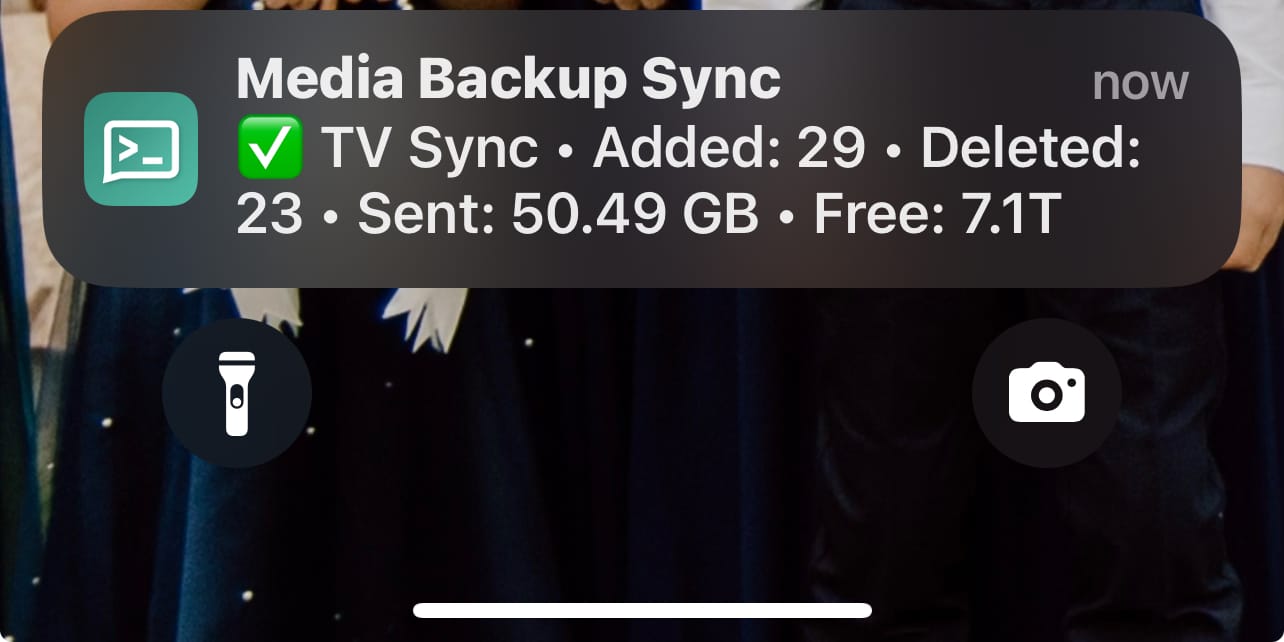
Here you can see the push notification that came through on my iPhone. It shows that 29 files were added, 23 were deleted, and about 50.49 gigabytes were transferred, leaving 7.1 terabytes of free space on the NAS. It is a quick snapshot that tells me everything I need to know without ever opening the NAS dashboard.
You might notice that some files are being deleted during the sync. That happens because I run a file converter on the server, so whenever a file is changed, the old version on the NAS gets replaced. The rsync command keeps the NAS as a perfect mirror of the server’s file structure.
You can subscribe to that topic on your phone or browser. I go over how to setup ntfy in n8n in more detail here:
 Jeremy
Or learn more about Ntfy here:
 Jeremy
Final Notes and Thoughts
This setup is small but powerful. The Samba share keeps everything local and simple, rsync handles the transfer with precision, and n8n ties it all together with automation and feedback.
I could have handled this with a plain cron job and been done with it, but using n8n gives me something better. I can actually see what is happening, track each step, and build on it with extras like notifications or even log the information into a data table like this.
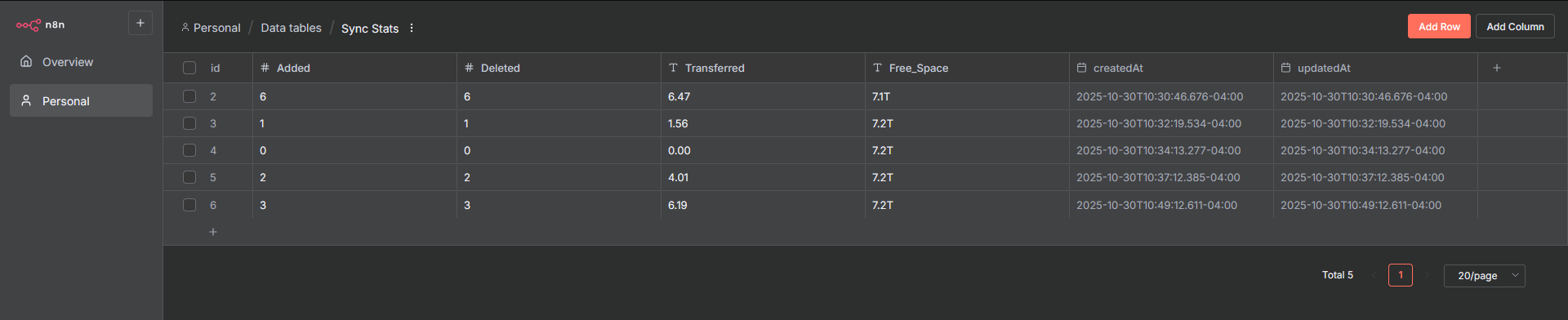
Yup, you can do that too. n8n now has built in tables so you don't have to connect to Google sheets anymore!
 Jeremy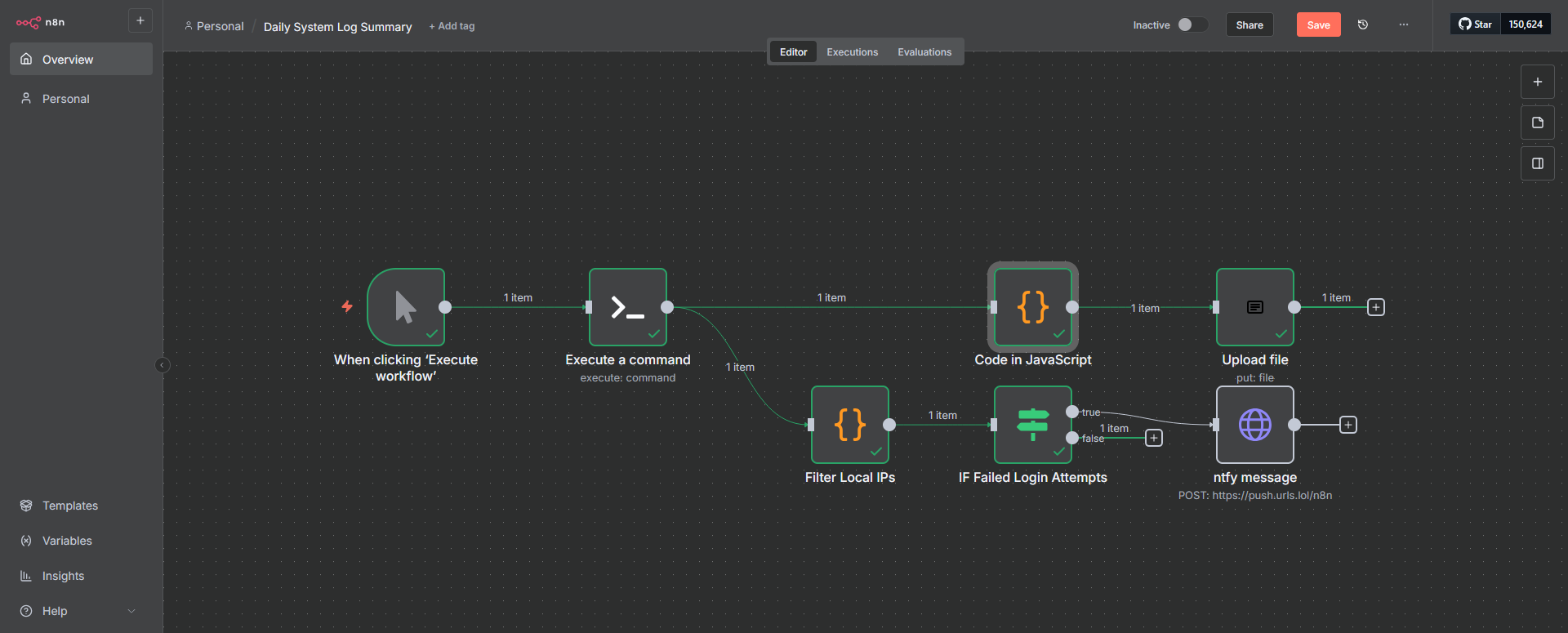


Discussion